
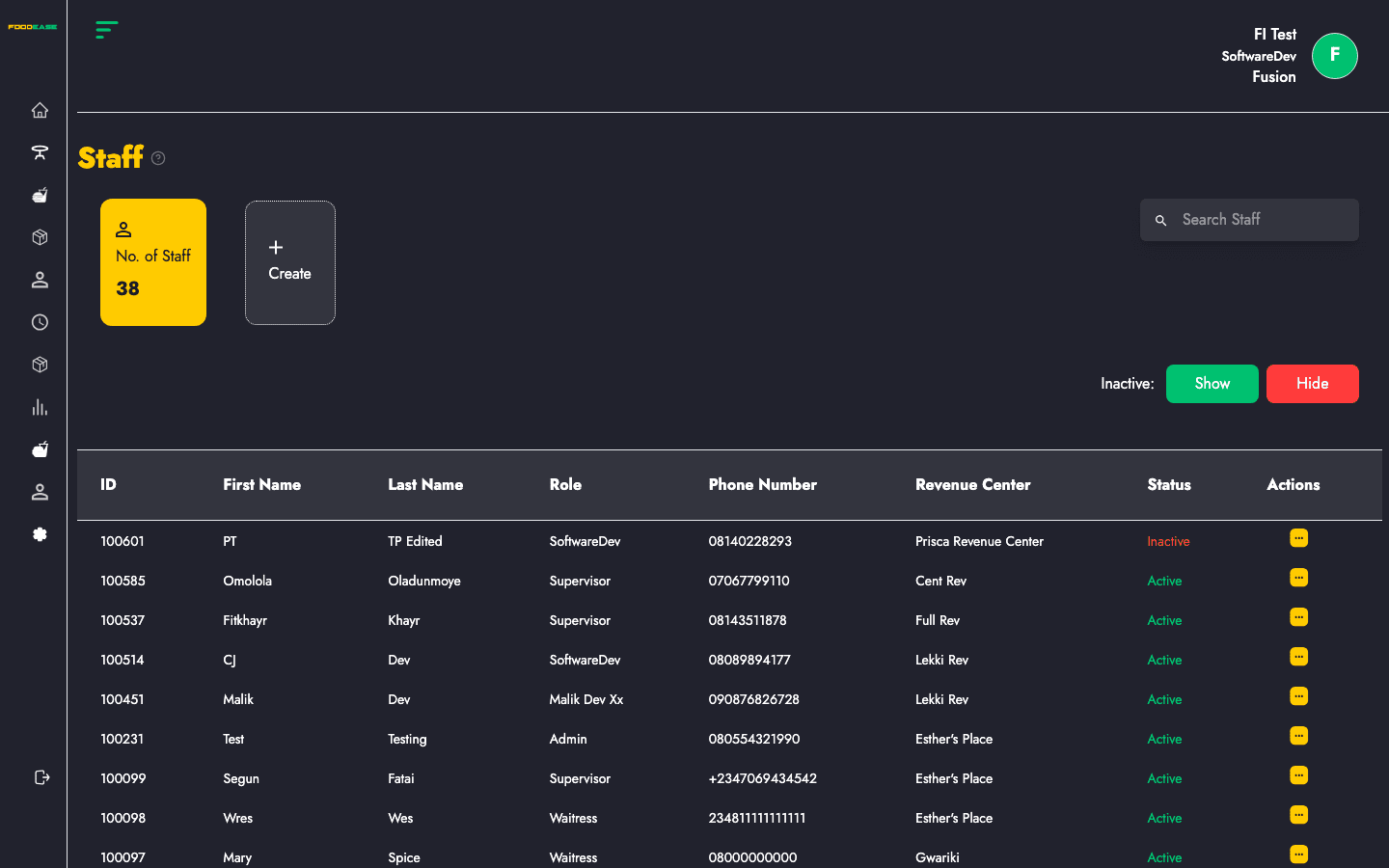
The View Staff page lists every employee in your restaurant. From here you create accounts, assign roles and locations, and manage login credentials (Office password and POS pin).
Who can use this page?
You need at least one of these permissions:
| Action | Permission required |
|--------|---------------------|
| View list | Create Staff, Edit Staff, or Toggle Staff |
| Create staff | Create Staff |
| Edit staff, pin, or password | Edit Staff |
| Activate / deactivate | Toggle Staff |
How to open View Staff
- Log in to FoodEase Office.
- In the sidebar, expand Staff.
- Click View Staff.
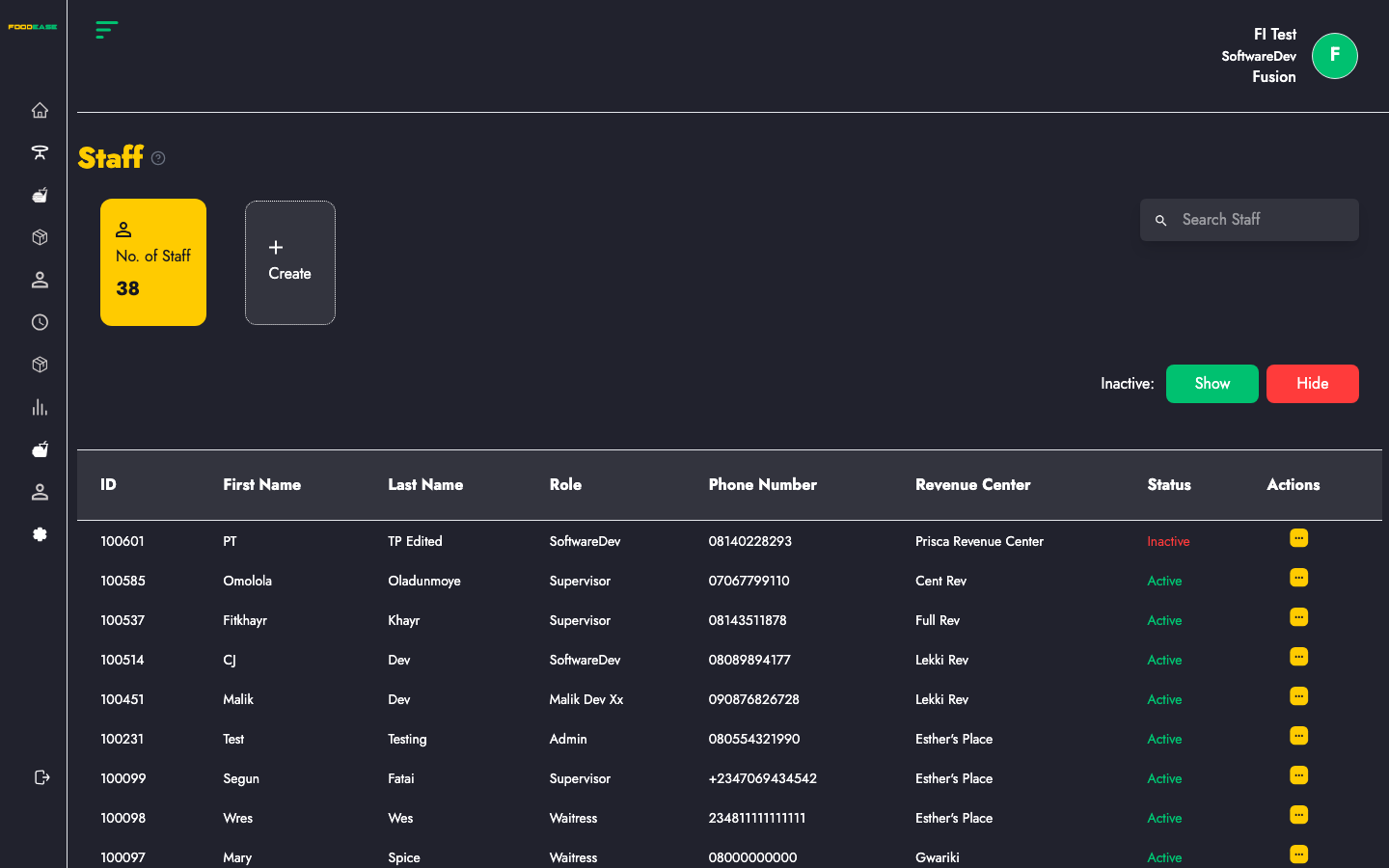
Page overview
| Area | What it does |
|------|----------------|
| No. of Staff | Count of staff currently shown in the list |
| Create | Open the Create New Staff modal |
| Search Staff | Find staff by first name, last name, ID, or role |
| Inactive: Show / Hide | Include or exclude deactivated staff from the list |
| Table columns | ID, First Name, Last Name, Role, Phone Number, Revenue Center, Status, Actions |
Search staff
Type in Search Staff to filter the table. Matches are checked against first name, last name, staff ID, and role name.
Show or hide inactive staff
Use the Inactive controls at the top of the table:
- Show (green) — include inactive staff in the list
- Hide (red) — show only active staff
Create a staff member
- Click Create (dotted card next to the staff count).
- Complete the Create New Staff form:
| Field | Required | Description |
|-------|----------|-------------|
| Filter By Revenue Center | Yes | Revenue centre where this staff member works |
| Preparation Area | Yes | Kitchen prep station linked to the selected revenue centre (options load after you pick a centre) |
| First Name | Yes | Staff member's given name |
| Last Name | Yes | Staff member's surname |
| Email Address | Yes | Used for login; must be unique across staff |
| Phone Number | Yes | Contact number (minimum 11 digits) |
| Password | Yes | Office login password (minimum 8 characters) |
| Confirm Password | Yes | Must match Password |
| Pin | Yes | POS login pin (4 digits) |
| Select Role Name | Yes | Role that defines what this staff member can do — set up under Roles |
| Is staff a Driver? | No | Check if this employee handles delivery runs |
- Click Create.
FoodEase checks that no other staff member already shares the same first and last name, or the same email address.
Before creating staff: set up Revenue Centres, Preparation Areas, and at least one Role.
Edit staff details
- Open Actions on the staff row.
- Click Edit Staff.
- Update fields in the Edit Staff Details modal:
| Field | Editable | Description |
|-------|----------|-------------|
| ID Number | No | System-assigned staff ID (read-only) |
| Filter By Revenue Center | Yes | Revenue centre assignment |
| Select Role Name | Yes | Staff role |
| First Name | Yes | Given name |
| Last Name | Yes | Surname |
| Email | Yes | Email address |
| User name | Yes | Login username |
| Phone Number | Yes | Contact number (minimum 11 digits) |
| Is staff a Driver? | Yes | Delivery driver flag |
- Click Save.
You need Edit Staff permission. Password and pin are changed separately (see below).
Manage pin and password
Open Actions on a staff row and choose the action you need:
| Action | When to use | Fields |
|--------|-------------|--------|
| Edit Pin | Staff knows their current pin | Old Pin, New Pin |
| Reset Pin | Admin reset without the old pin | New Pin |
| Edit Password | Staff knows their current password | Old Password, New Password |
| Reset Password | Admin reset without the old password | New Password |
Each modal has a Save button. Use the eye icon on password and pin fields to show or hide the value while typing.
All credential actions require Edit Staff permission.
Activate or deactivate staff
- Open Actions on the row.
- Click Deactivate (for active staff) or Activate (for inactive staff).
You need Toggle Staff permission. Inactive staff cannot log in but remain in the system for historical records.
Troubleshooting
| Issue | What to try |
|-------|-------------|
| Cannot create staff | Ask your admin to grant Create Staff permission |
| "Staff with name already exists" | Use a different name combination or edit the existing record |
| "Email already exists" | Use a different email or edit the existing staff member |
| Preparation Area list is empty | Select a revenue centre first — prep areas load for that location |
| No permission message on Actions | You need Edit Staff or Toggle Staff as appropriate |
| No staff shown | Click Inactive → Show, or clear the search box |