
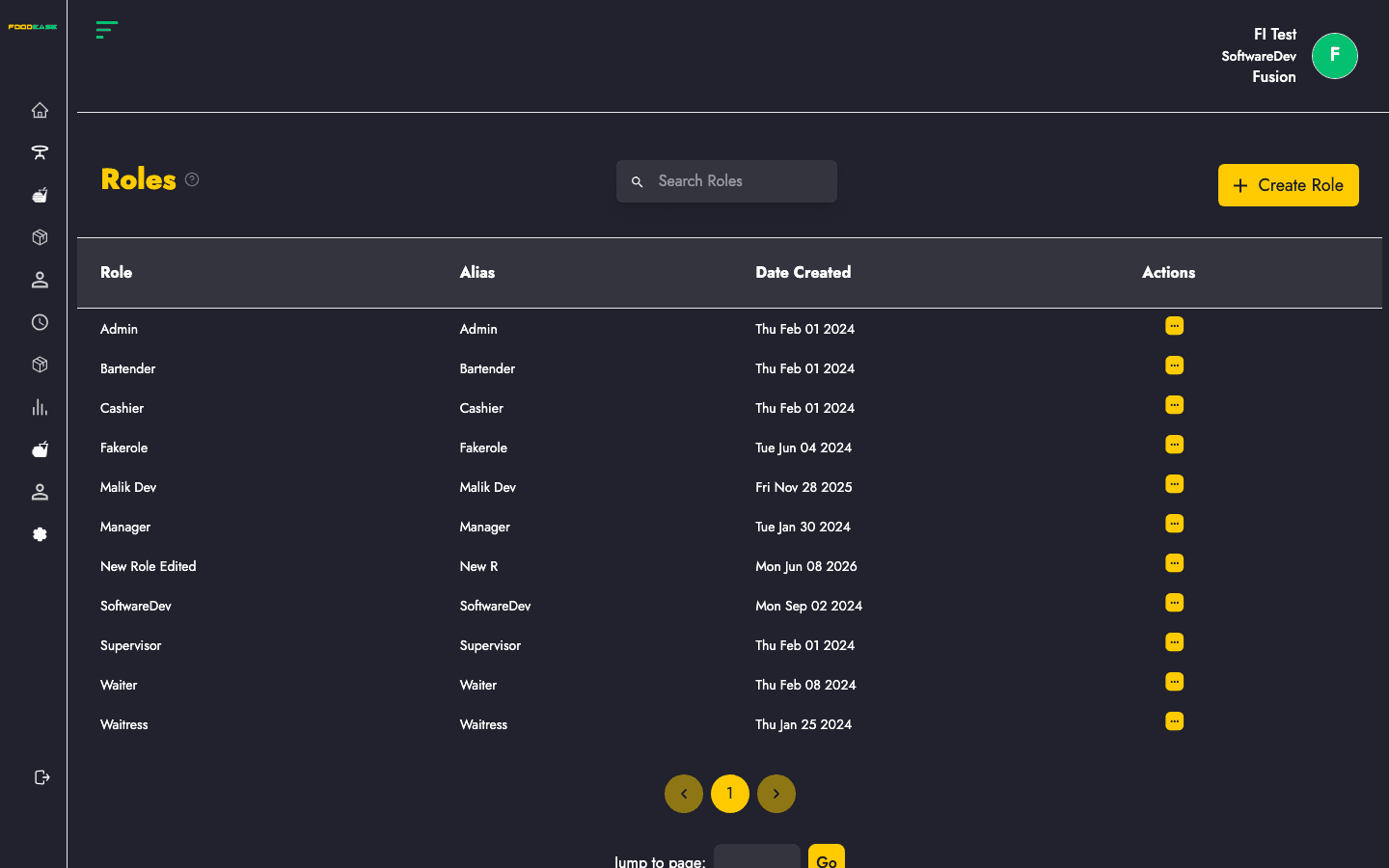
Roles define what each staff member is allowed to do in FoodEase Office and POS. Every staff account is linked to one role. Permissions — called claims — are added to or removed from roles on this page.
Who can use this page?
You need at least one of these permissions:
| Action | Permission required |
|--------|---------------------|
| View list | Create Staff, Edit Staff, or Toggle Staff |
| Create role | Create Staff (same claim used for role creation) |
| Edit role, add/remove claims | Edit Staff |
How to open Roles
- Log in to FoodEase Office.
- In the sidebar, expand Staff.
- Click Roles.
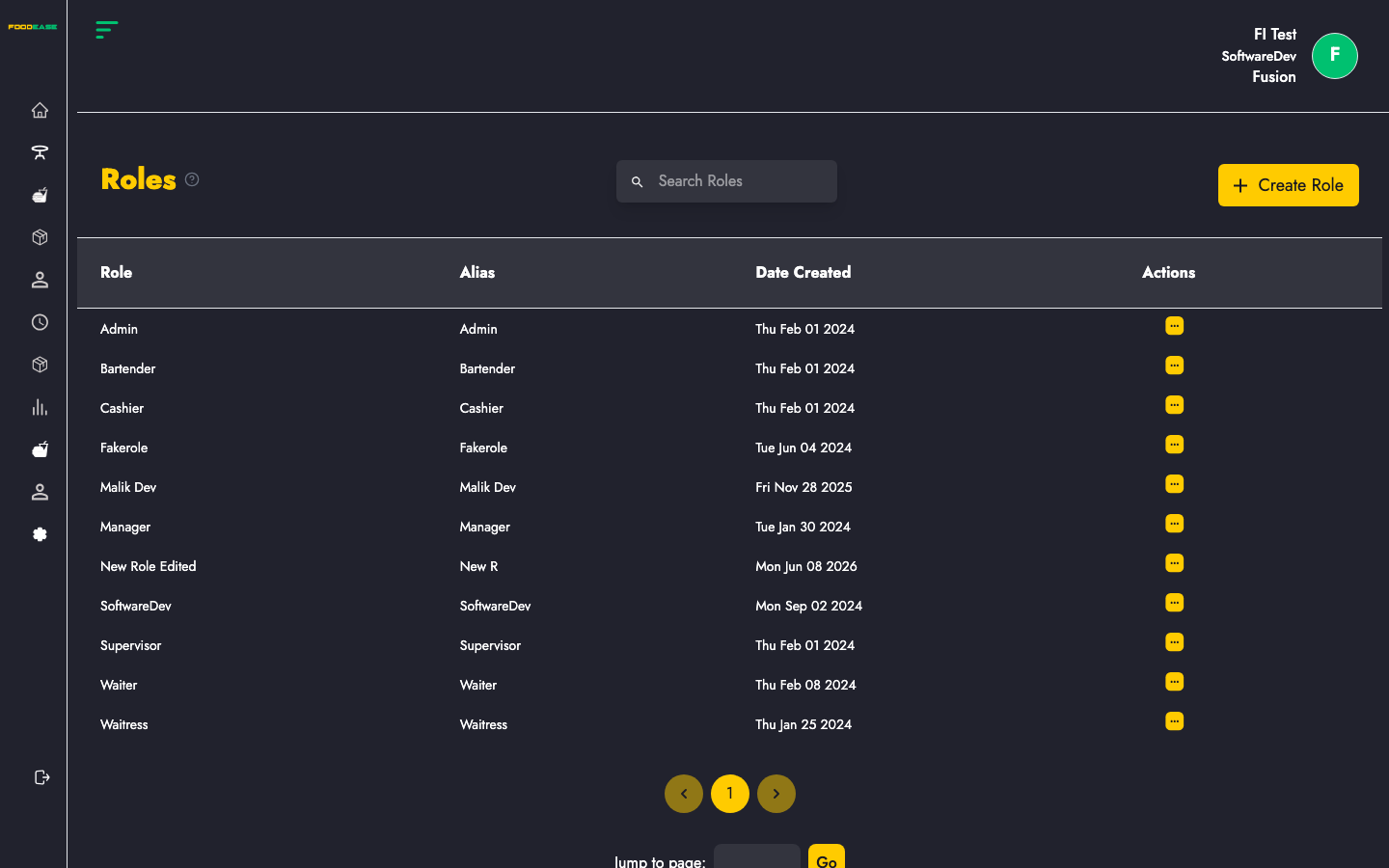
Page overview
| Area | What it does |
|------|----------------|
| Search Roles | Find roles by name or alias |
| Create Role | Open the create-role modal |
| Table columns | Role, Alias, Date Created, Actions |
Roles are sorted alphabetically by name.
Create a role
- Click Create Role (top right).
- Complete the form:
| Field | Required | Description |
|-------|----------|-------------|
| Enter Role Name | Yes | Display name for the role (e.g. Manager, Cashier, Kitchen Staff) |
| Enter Role Alias | Yes | Short or alternate name used to identify the role |
- Click Create.
FoodEase capitalises each word in the role name and alias when saving.
Edit a role
- Open Actions on the role row.
- Click Edit.
- Update Enter Role Name — the alias field is not shown when editing an existing role.
- Click Save.
Add claims to a role
Claims are individual permissions (e.g. create items, edit staff, run reports). Assign them to give a role access to specific features.
- Open Actions on the role row.
- Click Add Claims.
- In the Add Claims to Role modal, use Search Claims to find permissions.
- Check the boxes for each claim you want to grant. Only claims not already on the role are listed.
- Click Save.
Staff assigned to this role receive the new permissions on their next login.
Remove claims from a role
- Open Actions on the role row.
- Click Remove Claims.
- In the Remove Claims From Role modal, search and select the claims to revoke.
- Click Save.
If the role has no claims yet, the modal shows No claims added to this role.
Removing a claim immediately limits what staff with that role can do. Review impact before removing permissions from widely used roles.
Search roles
Type in Search Roles to filter by role name or alias.
Recommended setup order
- Roles ← create roles and assign claims here
- View Staff — create staff accounts and assign each person a role
Troubleshooting
| Issue | What to try |
|-------|-------------|
| Cannot create role | Ask your admin to grant Create Staff permission |
| Cannot edit or manage claims | Ask your admin to grant Edit Staff permission |
| No roles shown | Clear the search box or create your first role |
| Claim not in Add Claims list | It may already be assigned — use Remove Claims to review current permissions |
| Staff still has old access | Staff may need to log out and back in after claim changes |