
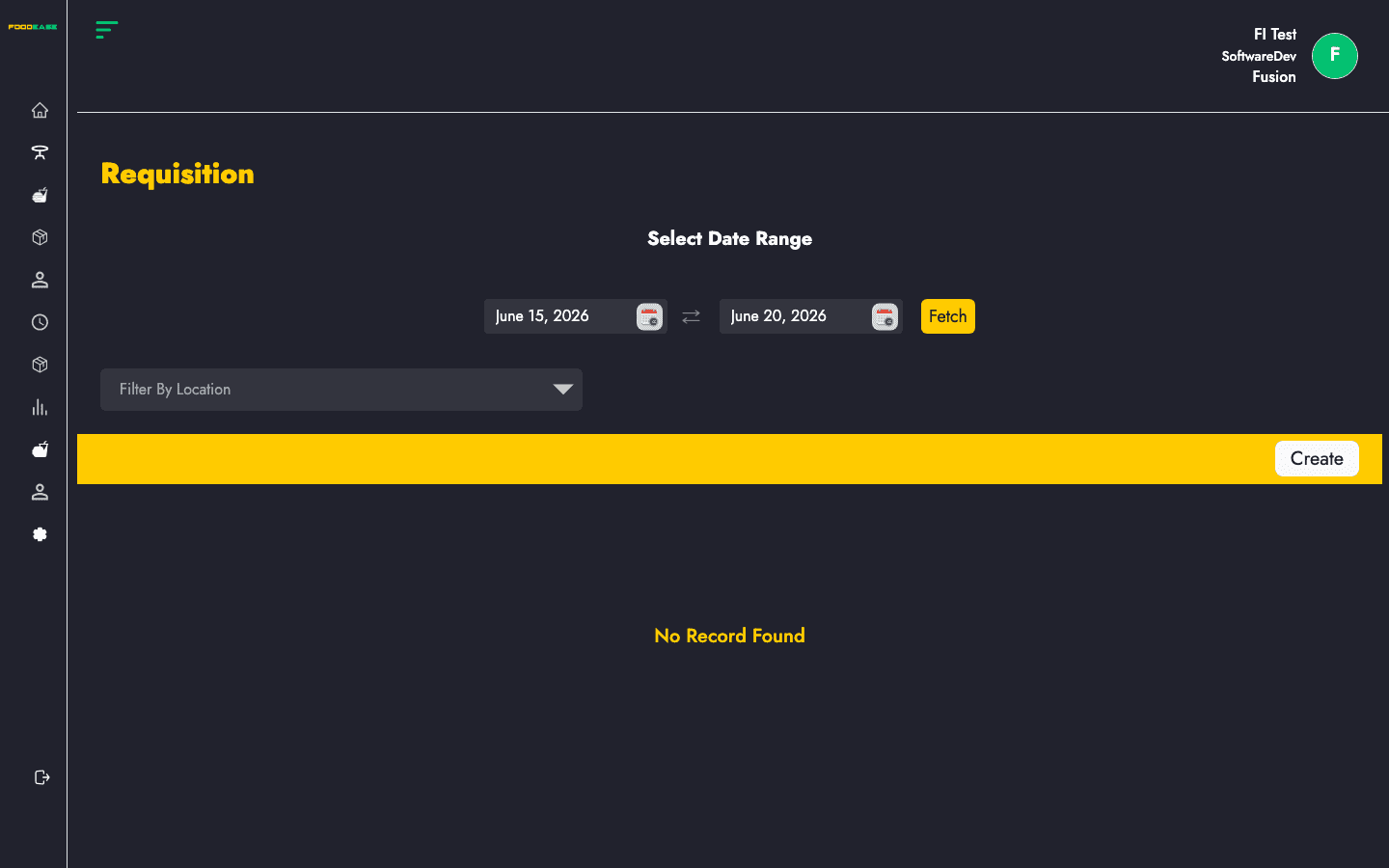
A Requisition (stock request) is the first step in the purchase workflow. Staff request items for a delivery location, save as draft or submit for approval, and approvers confirm before a Purchase Order is raised.
Who can use this page?
Users need at least one of:
- Create Stock Request — create and edit draft requisitions
- Approve Stock Request — approve or reject pending requisitions
How to open Requisition
- Log in to FoodEase Office.
- Sidebar → Inventory → Requisition.
Page overview
| Column | Description |
|--------|-------------|
| Request Id | Unique requisition reference (click to view) |
| Requested Date | Date the request was created |
| Requested By | Staff member who raised the request |
| Vendor | Supplier linked to the request (when applicable) |
| Location | Delivery store location |
| Status | Draft, Pending, Approved, Rejected, or other workflow state |
| Actions | Open view or edit screen |
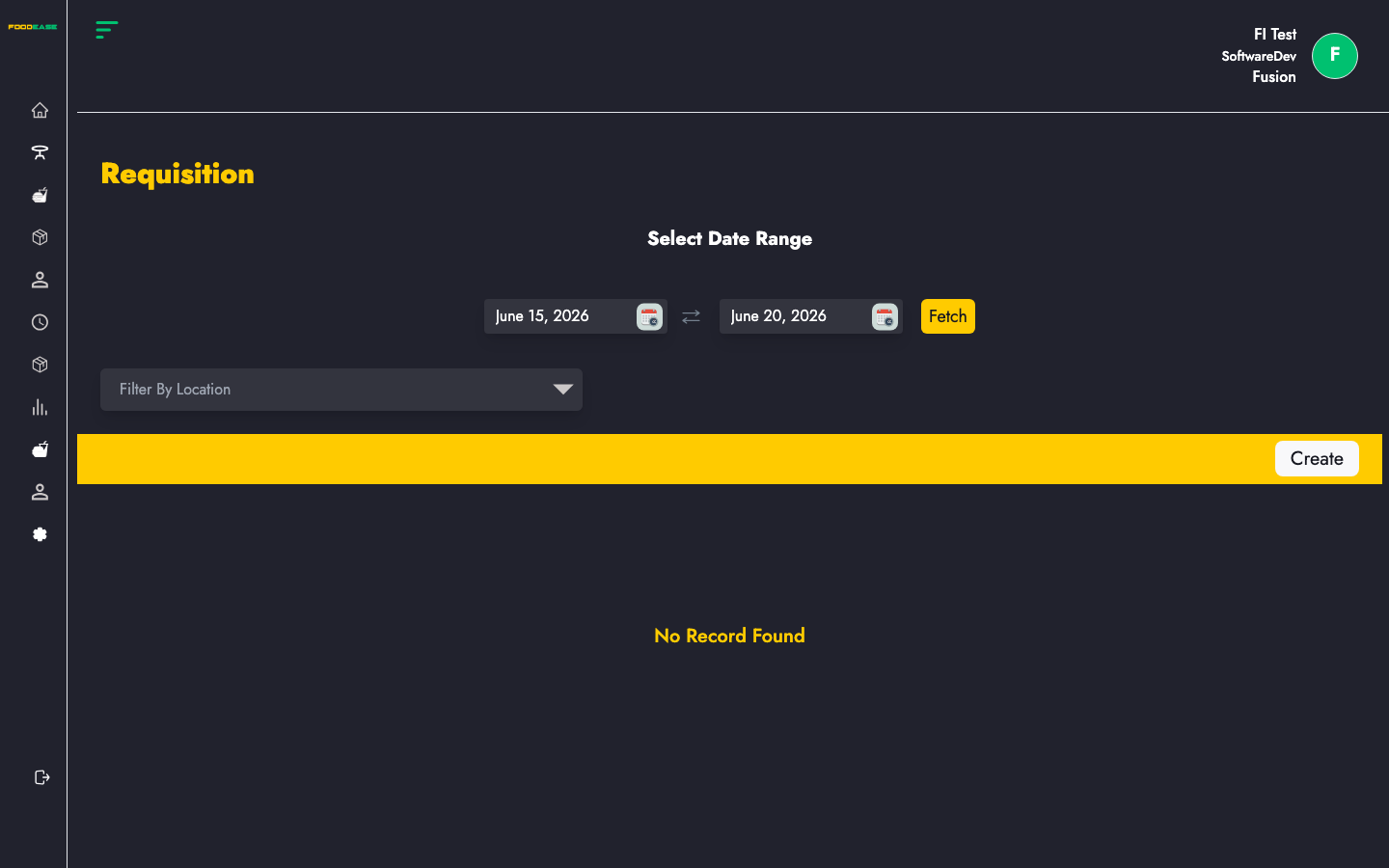
| Filter / tool | Description |
|---------------|-------------|
| Date range | Show requisitions within a period |
| Location | Filter by delivery location |
| Generate PDF | Print the filtered list |
| Export | Download as Excel |
| Create | Start a new requisition |
Create a requisition
- From the Requisition list, click Create (requires Create Stock Request).
- On the create form (
/dashboard/stocks/create-stock-request):
| Field | Description |
|-------|-------------|
| Requisition Type | Select Purchase (the supported type in Office) |
| Delivery Location | Store location where goods should be delivered |
| Items | Line items with description, IUoM, and quantity desired |
- Click Add Item (after selecting a delivery location) to pick stock items from the item picker.
- For each line, enter Description, UoM, and Qty Desired.
- Choose one of:
- Save As Draft — keep editing later from the list (Draft rows open the edit screen).
- Submit For Approval — send to an approver.
- Click Cancel to return without saving.
At least one item is required. Each line must have a description, unit of measurement, and quantity.
Edit a draft requisition
- In the table, open Actions on a Draft row (or click the request id).
- You are taken to
/dashboard/stocks/edit-stockRequest/{id}. - Update items or location, then Save As Draft or Submit For Approval.
Non-draft requests open the read-only view page.
Approve or reject a requisition
- Open a Pending requisition from the list (
/dashboard/stocks/view-stockRequest/{id}). - Review items, delivery location, and request details.
- Click Approve or Reject (requires Approve Stock Request).
- For rejection, enter a remark in the confirmation modal.
Approved requisitions feed into the Purchase Order workflow.
Search and filter
- Set a date range to load records for that period.
- Use the location dropdown to show requisitions for one delivery location.
- Export or print the filtered list with Export or Generate PDF.
Best practices
- Select the correct Delivery Location before adding items — the item picker uses that location’s stock catalogue.
- Use clear line Descriptions so procurement and receiving staff understand each request.
- Submit for approval only when quantities are final; approved requests move to purchase ordering.
- Maintain Vendors and Locations before heavy requisition use.