
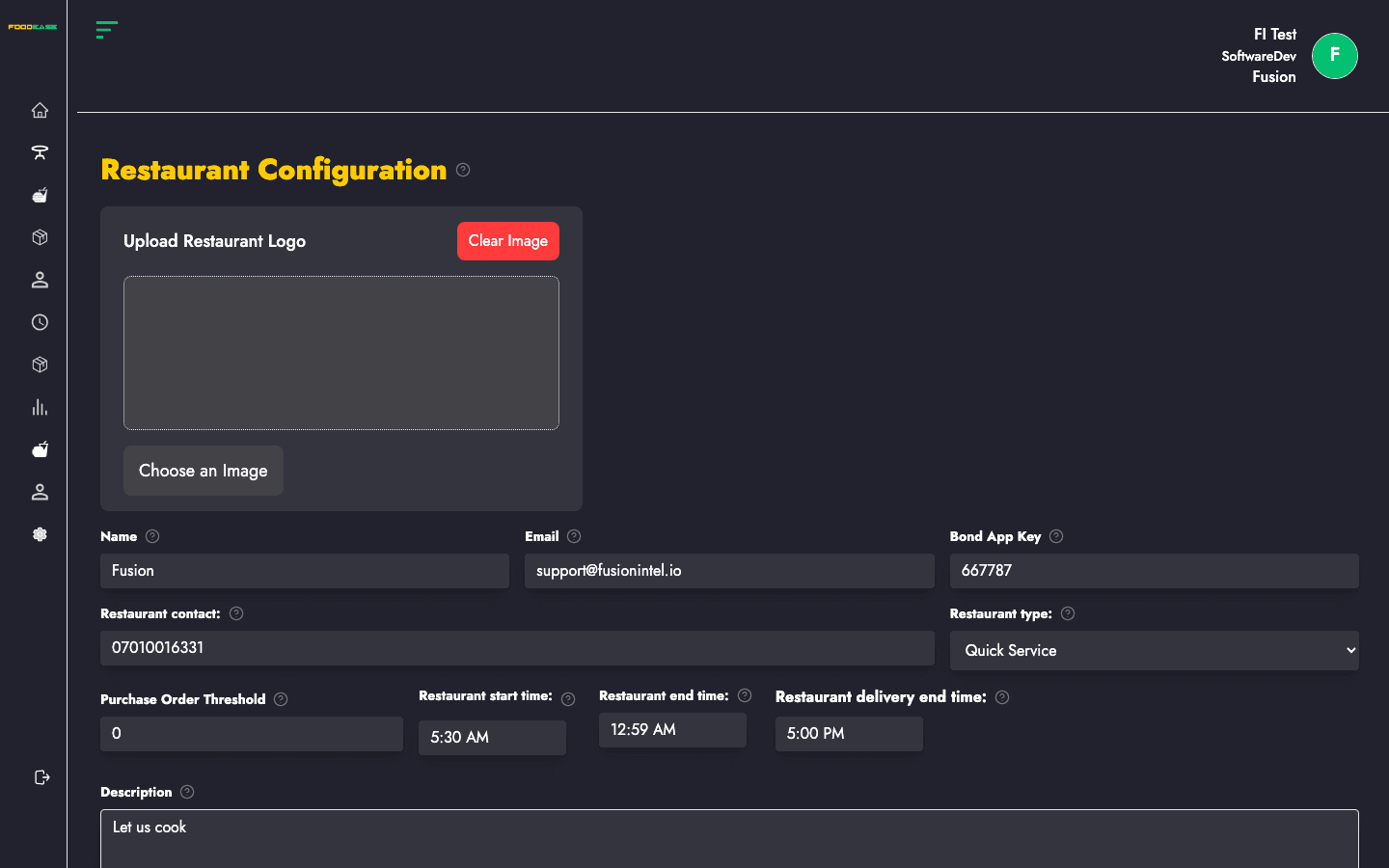
Restaurant Info is the main settings page for your business in FoodEase Office. Update your logo, contact details, service type, operating hours, tax behaviour, and toggles that affect POS, inventory, and your website.
Who can use this page?
You need the Edit Restaurant permission (CAN_EDIT_RESTAURANT).
How to open Restaurant Info
- Log in to FoodEase Office.
- In the sidebar, expand Restaurant Settings.
- Click Restaurant Info.
Page overview
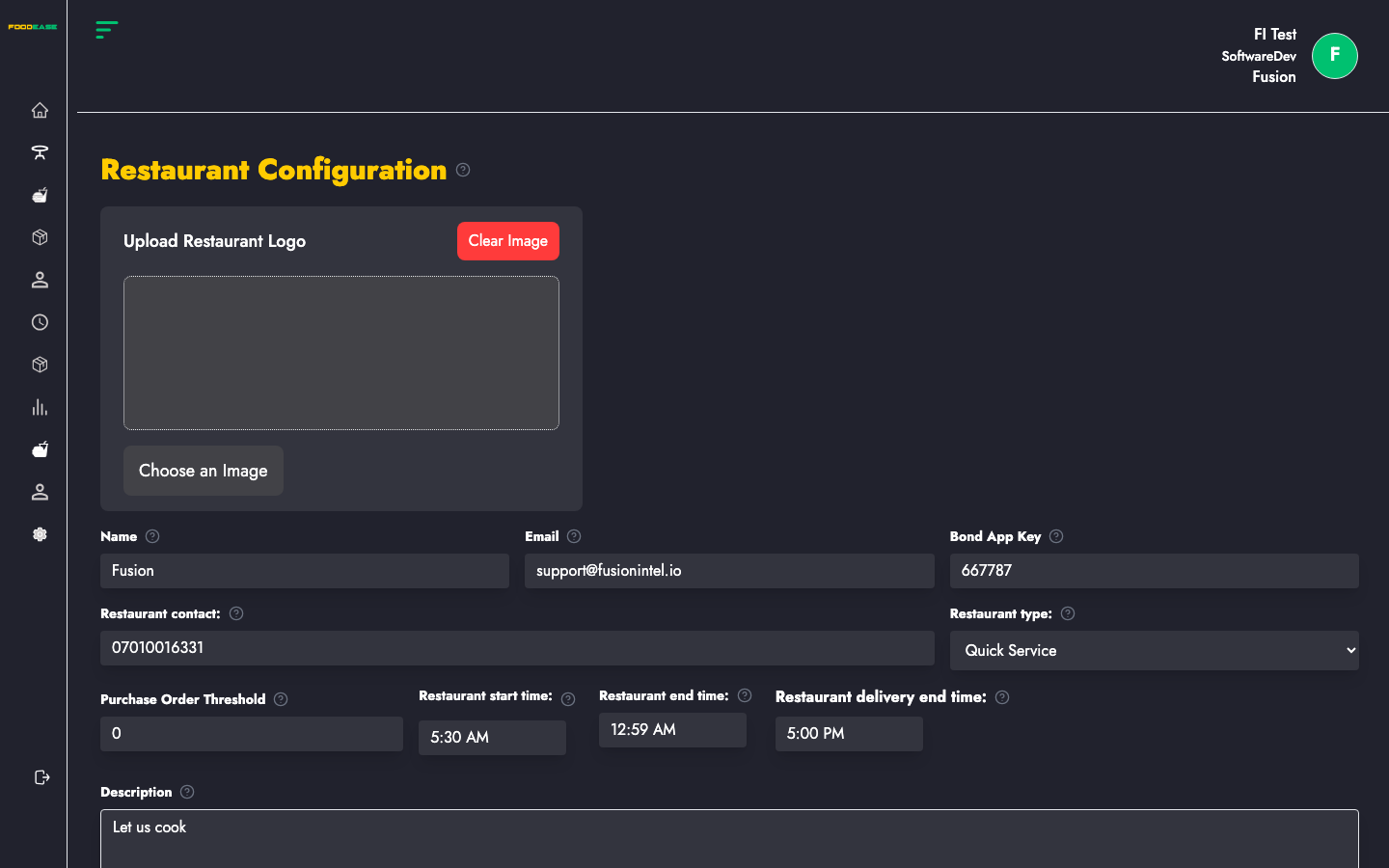
The page is a single form grouped into sections. Scroll through all fields, then click Save at the bottom.
Basic details
| Field | Required | Description |
|-------|----------|-------------|
| Upload Restaurant Logo | No | Logo shown on reports, PDFs, and website |
| Restaurant Name | Yes | Official business name |
| Restaurant Email | Yes | Primary contact email |
| Merchant ID | No | Integration key for the Bond app |
| Restaurant Number | Yes | Main customer phone number |
| Restaurant Type | No | Service category for your outlet |
| Purchase Order Threshold | No | Minimum amount before a PO is generated |
| Description | Yes | Short description of your restaurant |
Operating times
| Field | Description |
|-------|-------------|
| Start Time | Default daily opening time |
| End Time | Default daily closing time |
| Delivery End | Latest time customers can place delivery orders |
| Opening Hours (per day) | Set open/closed and start/end for each day of the week — toggle Closed for days you do not operate |
Service and system toggles
| Toggle | Description |
|--------|-------------|
| Quick Service | Fast, counter-based service model |
| Fine Dining | Full-service sit-down dining |
| Tax Exclusive | Tax added at checkout instead of included in item prices |
| Third Party Delivery | Restaurant uses external delivery partners |
| KDS Enabled | Kitchen Display System for kitchen screens |
| Auto Switch | Automatic work-period switching (when configured) |
| Show Inactive | Show inactive records where applicable |
| Can Change Revenue Center | Allow staff to switch revenue centre on POS |
| Has Website | Enables website features — required for Customers List, Featured Items, and related pages |
When Has Website is on, enter your Website URL (must be a valid URL).
Stock teams
Add one or more Stock Teams for inventory email notifications:
| Field | Description |
|-------|-------------|
| Team Name | Label for the team |
| Email Recipients | One or more emails that receive stock alerts |
Use Add to create another team row.
Save changes
- Review all sections.
- Click Save at the bottom of the form.
FoodEase validates required fields and shows errors inline. A loading toast appears while the update runs.
Related guides
- Website Banners — homepage imagery (requires Has Website)
- POS Settings — reset POS sales metrics
- Revenue Centre — outlets linked to your restaurant