
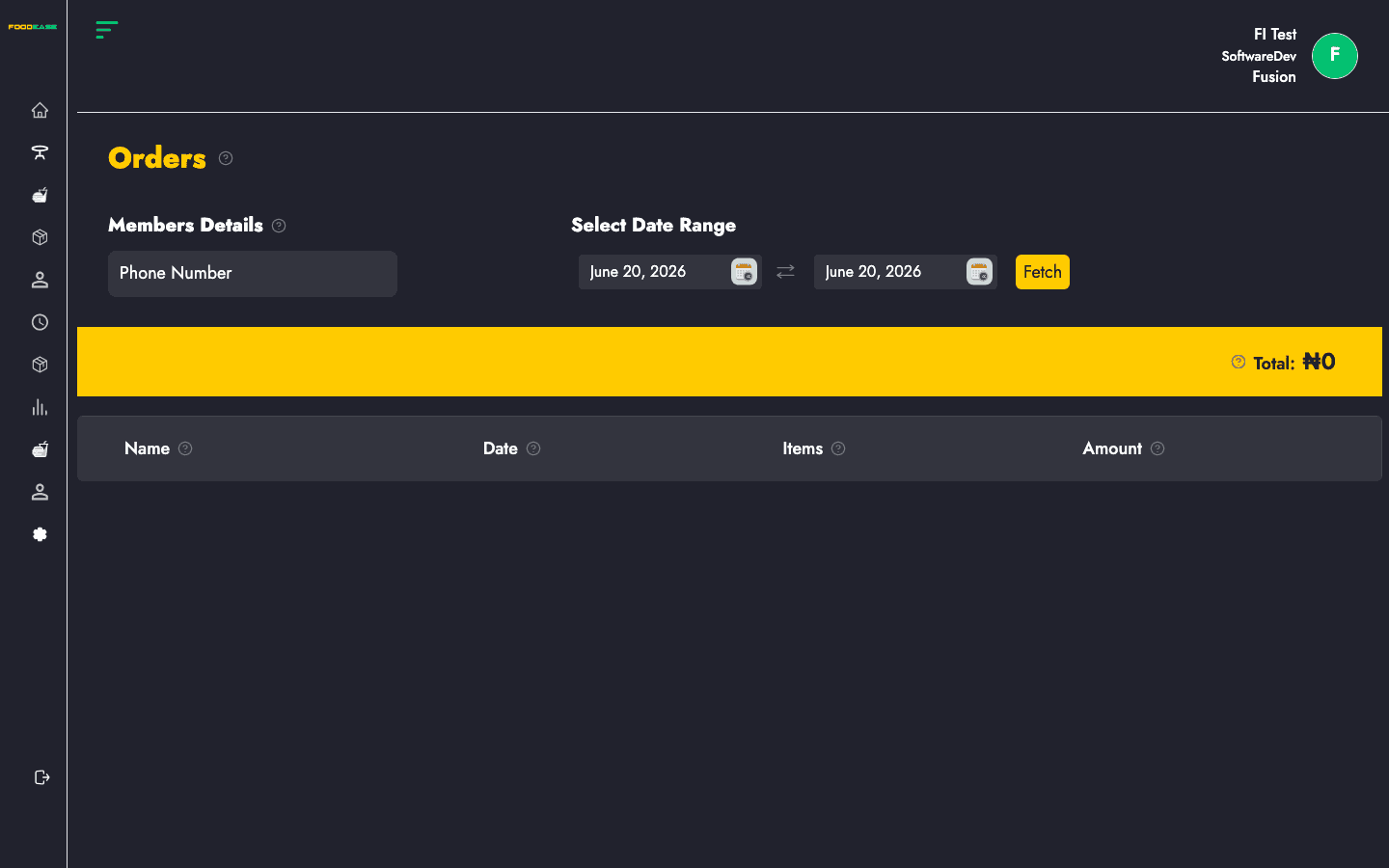
The Orders page under Channels lets you find orders linked to a customer phone number — useful for support, loyalty follow-ups, and reconciling online or channel sales.
Who can use this page?
You need the Manage Channels permission (CAN_MANAGE_CHANNELS).
How to open Orders
- Log in to FoodEase Office.
- In the sidebar, expand Channels.
- Click Orders.
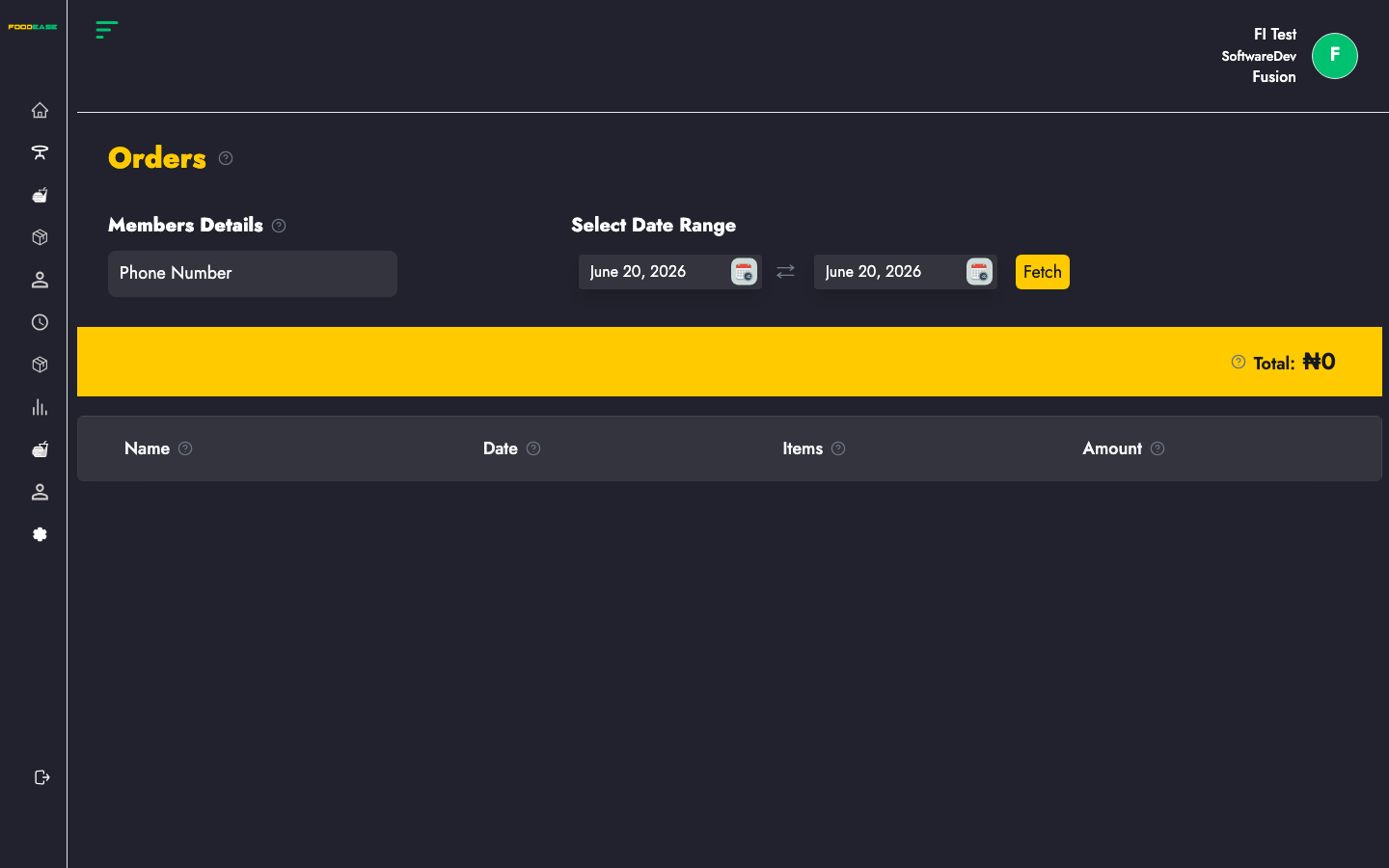
Page overview
| Area | What it does |
|------|----------------|
| Members Details | Enter the customer's phone number |
| Select Date Range | Filter orders to a from/to period |
| Summary bar | Customer name and total amount for matched orders |
| Orders table | Individual orders with date, items, and actions |
Look up orders
- Type the customer's Phone Number in Members Details.
- Set Date From and Date To using the date filter.
- Apply the filter.
When orders exist for that number in the range, the yellow summary bar shows the customer name and Total amount. The table lists each order.
Orders table
| Column | Description |
|--------|-------------|
| Name | Customer name on the order |
| Date | When the order was placed |
| Items | Line items on the order — open to view details |
| Amount | Order total |
Click an order row to open the order detail modal and review individual items, quantities, and prices.
No results
If no orders match, you see No Data Found. Check that:
- The phone number matches exactly how it was stored at checkout
- The date range includes the order date
- The order was placed through a tracked channel
Related guides
- Custom Channels — set up payment channels
- Customers List — registered website customers
- Online Orders Report — aggregate online order analytics