
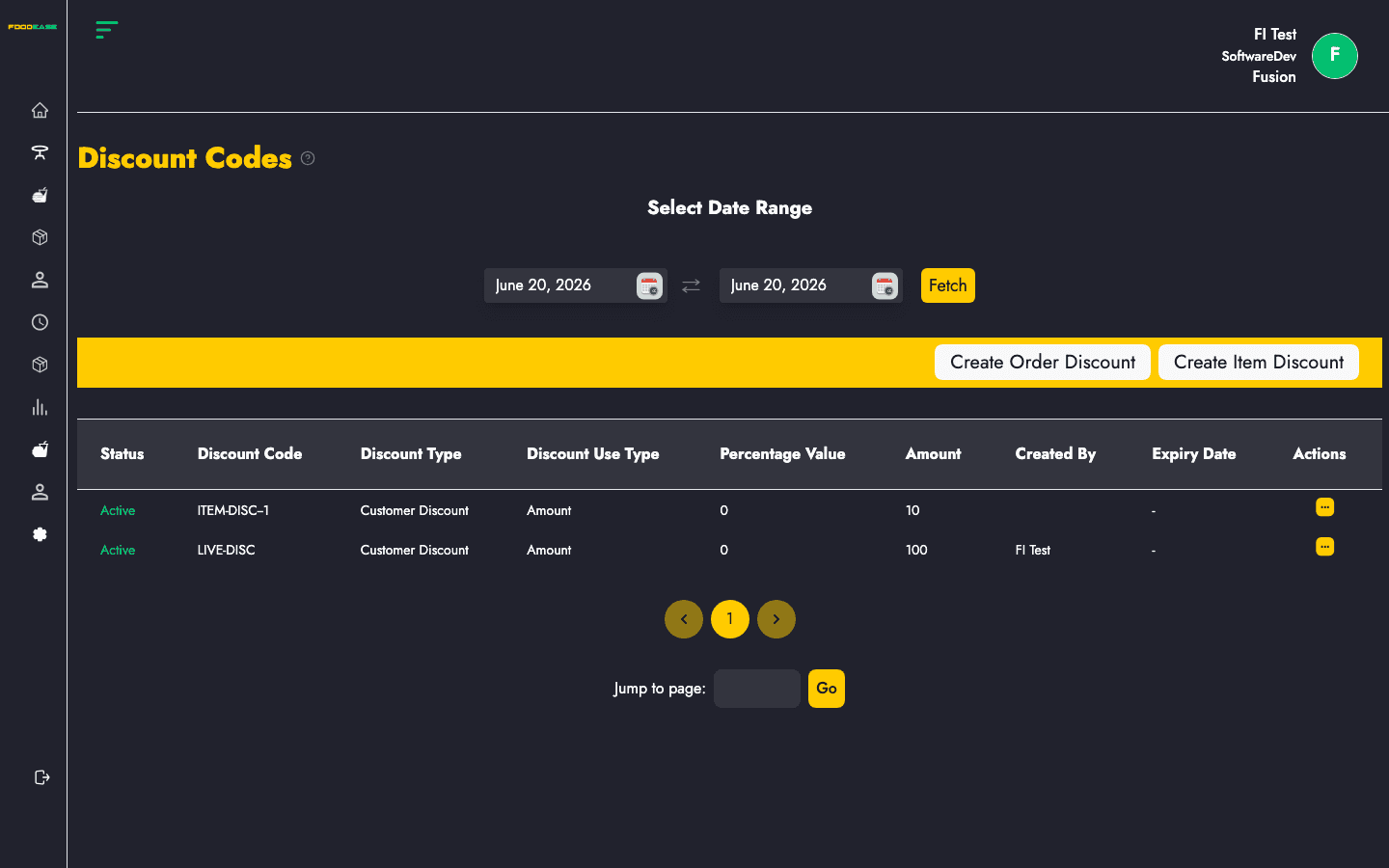
The Discount Codes page manages promotional discounts customers can receive at checkout. You can create order discounts (fixed amount or percentage off the whole check) and item discounts (price reductions on specific menu items).
Who can use this page?
You need the Create Discounts permission (CAN_CREATE_DISCOUNTS).
How to open Discount Codes
- Log in to FoodEase Office.
- In the sidebar, expand Discount & Promo.
- Click Discount Codes.
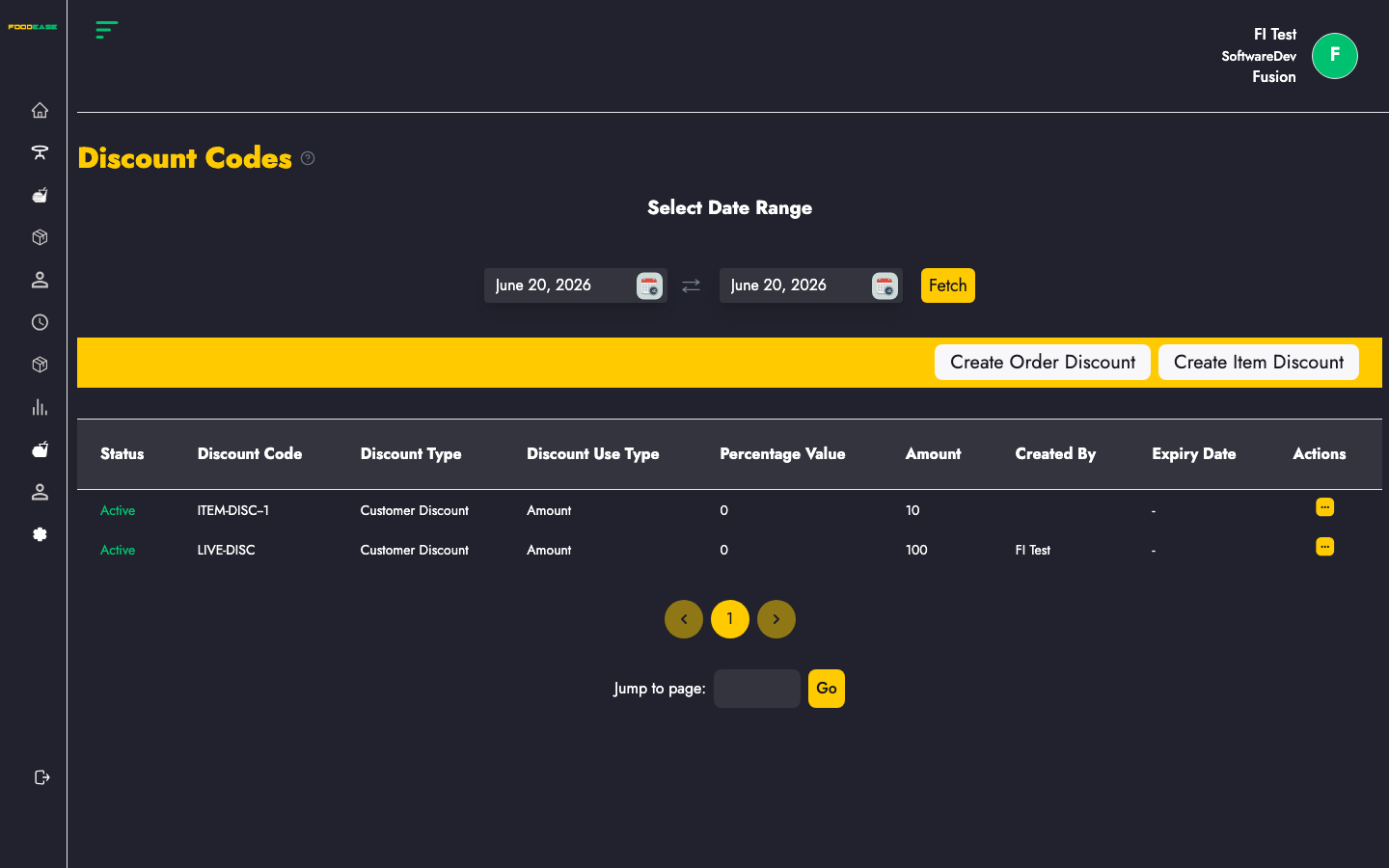
Page overview
| Area | What it does |
|------|----------------|
| Select Date Range | Filter which discount codes appear in the list (by activity in that period) |
| Create Order Discount | Open the modal to add a promo code for the whole order |
| Create Item Discount | Open the item discount form for specific menu items |
| Table | Lists codes with status, type, value, creator, and expiry |
Filter by date
- Use the Date Filter at the top of the page.
- Set Date From and Date To, then apply.
The table reloads with discount codes relevant to that range. The page initially loads codes for the current calendar year.
Discount code table
| Column | Description |
|--------|-------------|
| Status | Active or inactive |
| Discount Code | Code name entered at POS or online |
| Discount Type | Category of discount (e.g. order vs promotional type) |
| Discount Use Type | Amount (fixed) or Percent |
| Percentage Value / Amount | Value applied — percentage or fixed amount |
| Created By | Staff who created the code |
| Expiry Date | When the code stops working (if expiry is enabled) |
| Actions | Edit or activate/deactivate |
Create an order discount
- Click Create Order Discount.
- Complete the Create Discount Code modal:
| Field | Description |
|-------|-------------|
| Expiry Date | Optional date and time when the code expires; if left blank, a long default expiry is used |
| Discount Code | Unique code name — must not duplicate an existing code |
| Amount or Percentage | Choose one: fixed amount off the order, or percentage of order total (cannot switch type when editing) |
| Discount Type | Select the discount category from the dropdown |
| Use count limit | Optional cap on how many times the code can be used |
- Click Create.
On success you see Discount Code Created Successfully and the code appears in the table.
Edit or toggle a discount code
- Open Actions on the code row.
- Edit — update expiry, value, or use limit (discount code name and amount/percent type are locked on edit).
- Toggle — activate or deactivate without deleting the code.
Inactive codes cannot be applied on POS.
Create an item discount
- Click Create Item Discount.
- Complete the Item Discount form (opens below the header bar):
Use this flow when the reduction applies to specific items rather than the entire order total. Configure the item, discount value, and validity according to the on-screen fields.
- Save the item discount.
Item discounts appear alongside order discount codes in your discount management workflow.
Tips
- Use clear, unique code names (e.g.
SUMMER10) so cashiers can find them quickly on POS. - Set expiry dates for seasonal campaigns.
- Review the Discount Report and Items Discount Report to audit usage.
Related guides
- Loyalty Settings — points-based rewards (separate from promo codes)
- Create an Item — menu items that item discounts target